📱 Facebook WhatsApp Setup

Follow this guide step by step to create your Meta Developer account, Business App, WhatsApp Cloud API, Access Token and Phone Number ID, then connect everything with Convo.

🚀

â–¶ Complete Video Tutorial


1

Create Facebook Developer Account

First create a Meta Developer account.
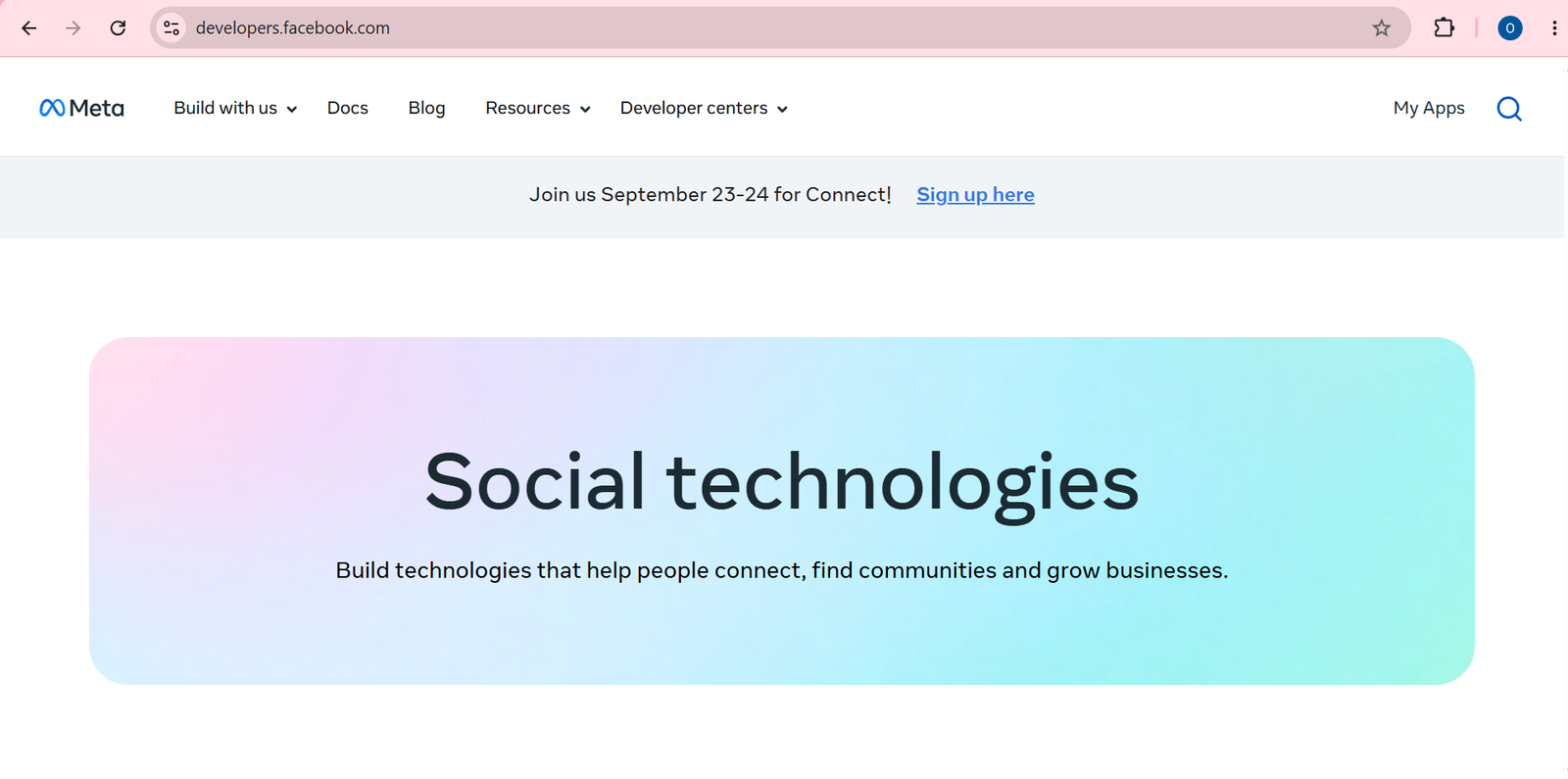
  1. Open https://developers.facebook.com
  2. Login using your Facebook account.
  3. Create Facebook Developer Account.
  4. Your developer account is now ready.
  5. Click My Apps Button
2

Create a Business App

Create a new Meta Business application.
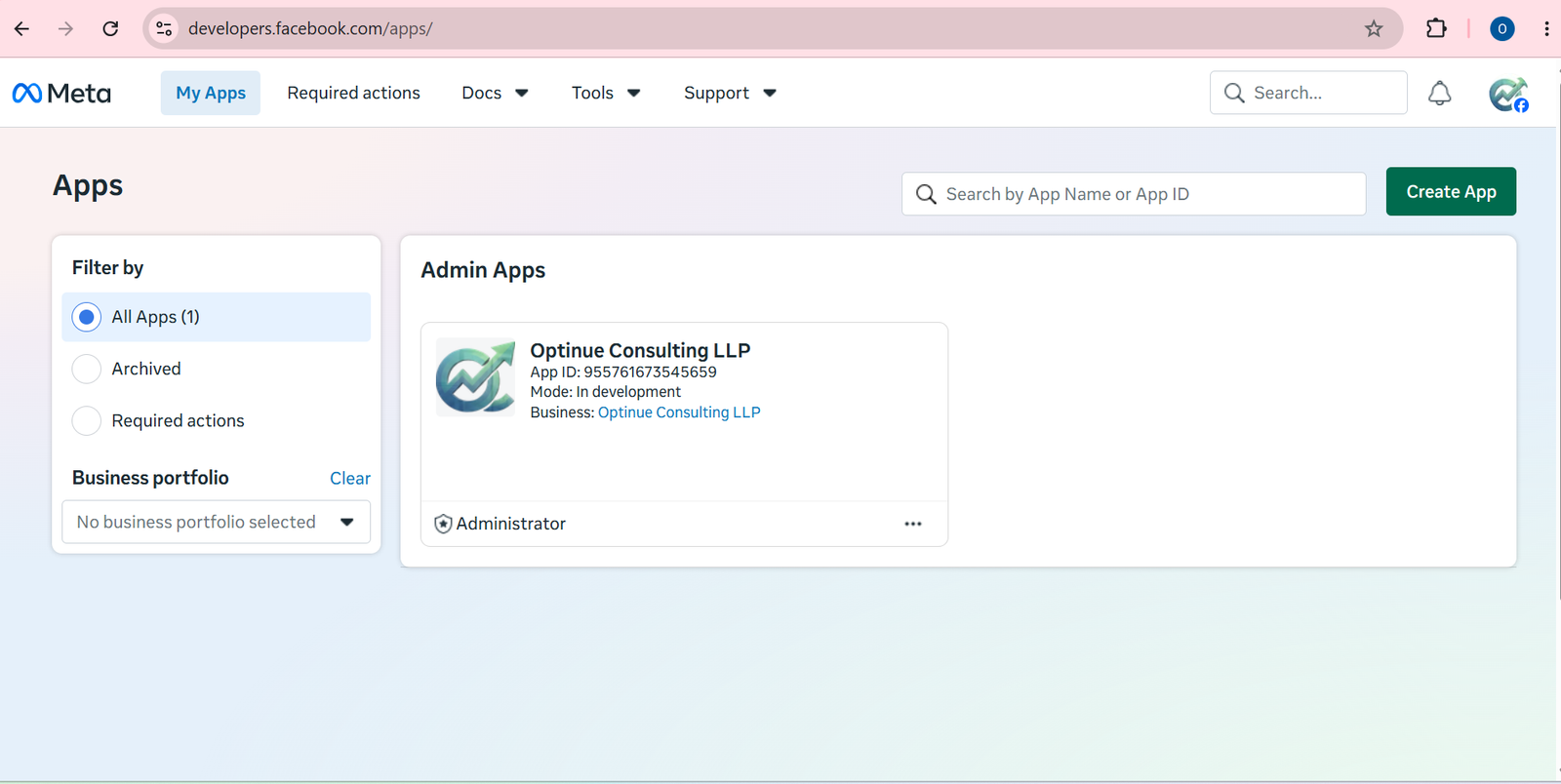
  1. Click Create App.
3

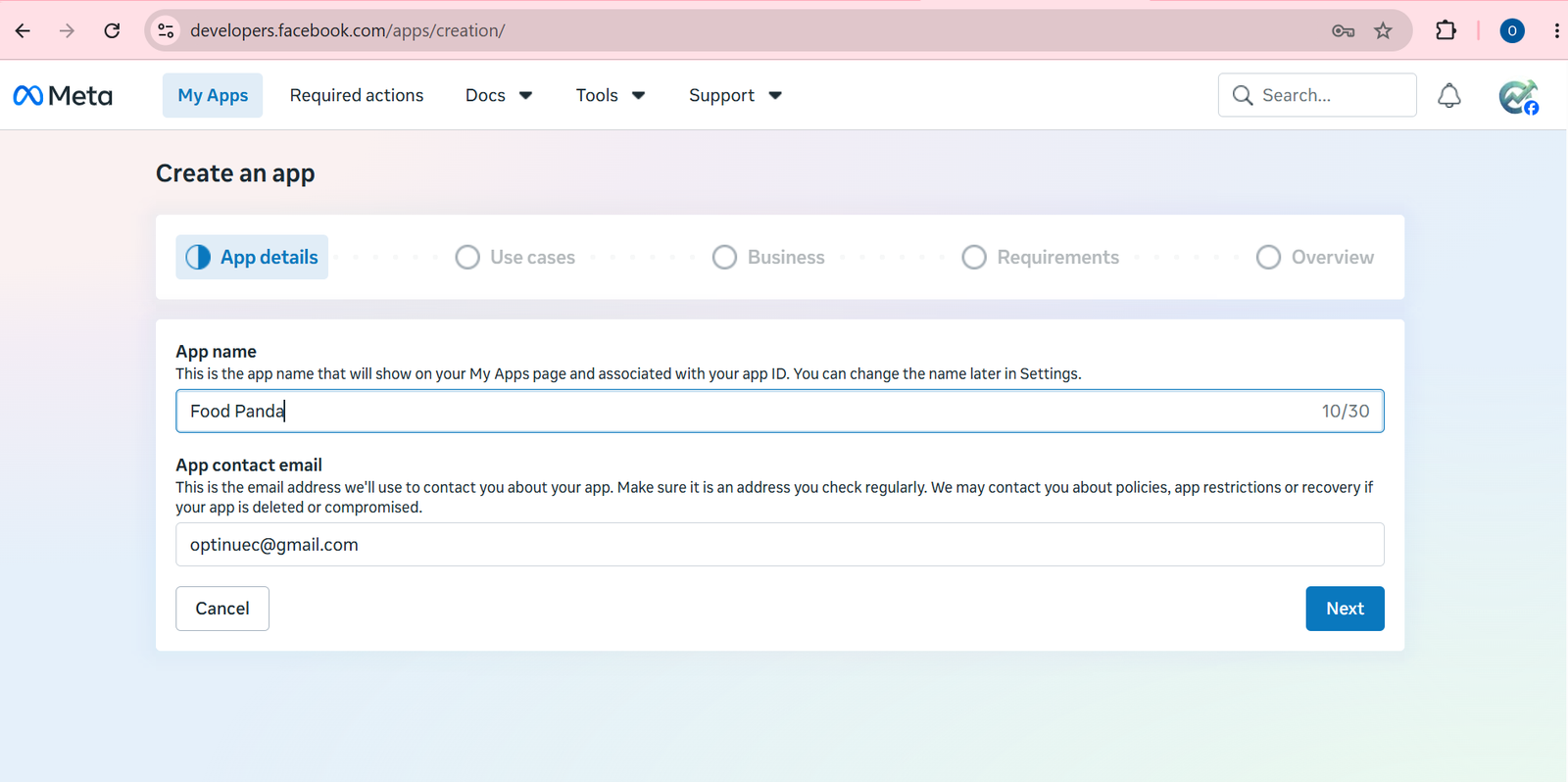
Fill App Details

Give your app details.

  1. Fill app name.
  2. Fill personal or business contact email.
  3. Click Next button.
4

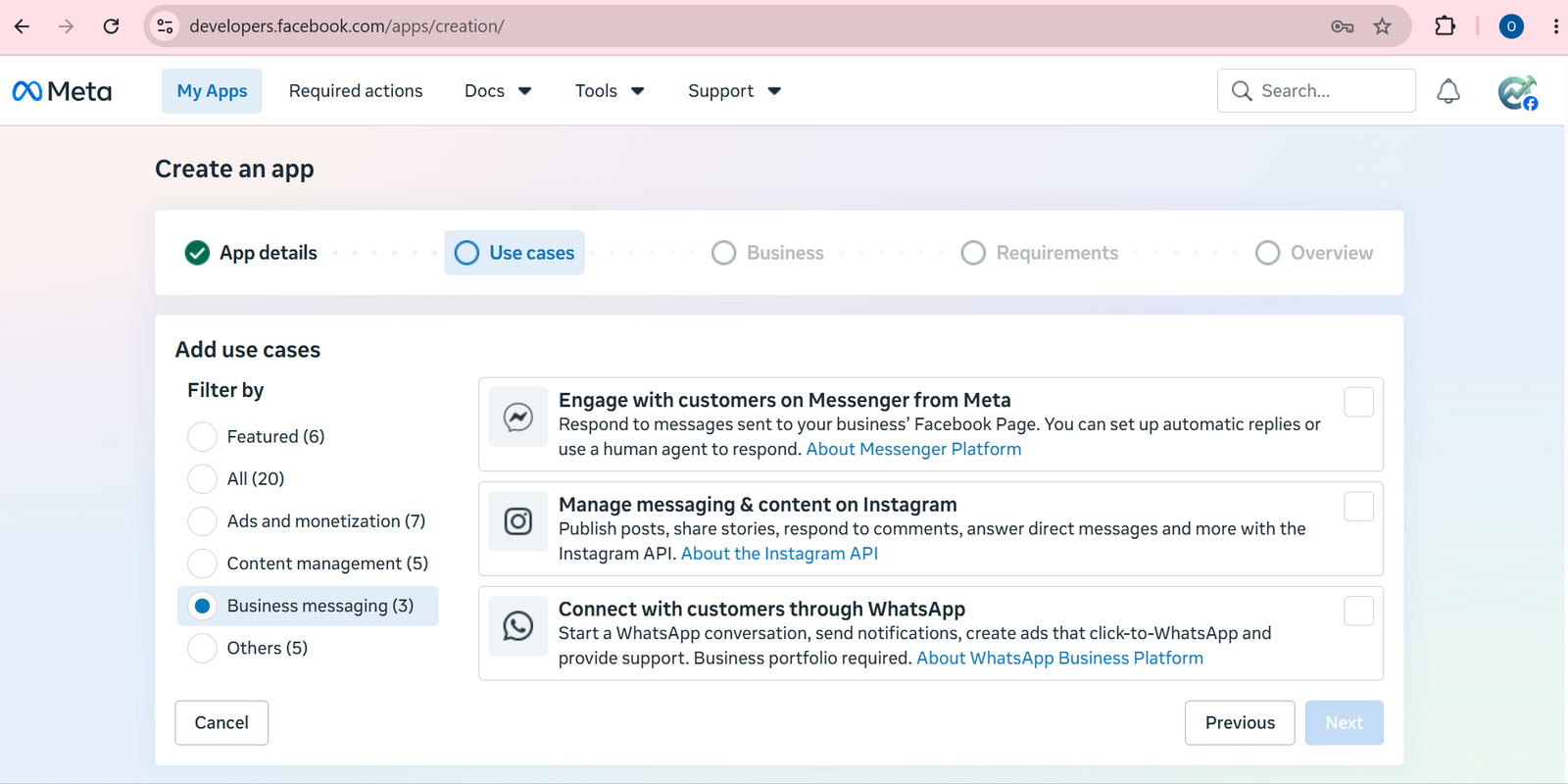
Use Cases

Choose the WhatsApp use case.

  1. Select Business Messaging from the left section.
  2. Select "Connect with customers through WhatsApp" from the right section.
  3. Click Next button.
5

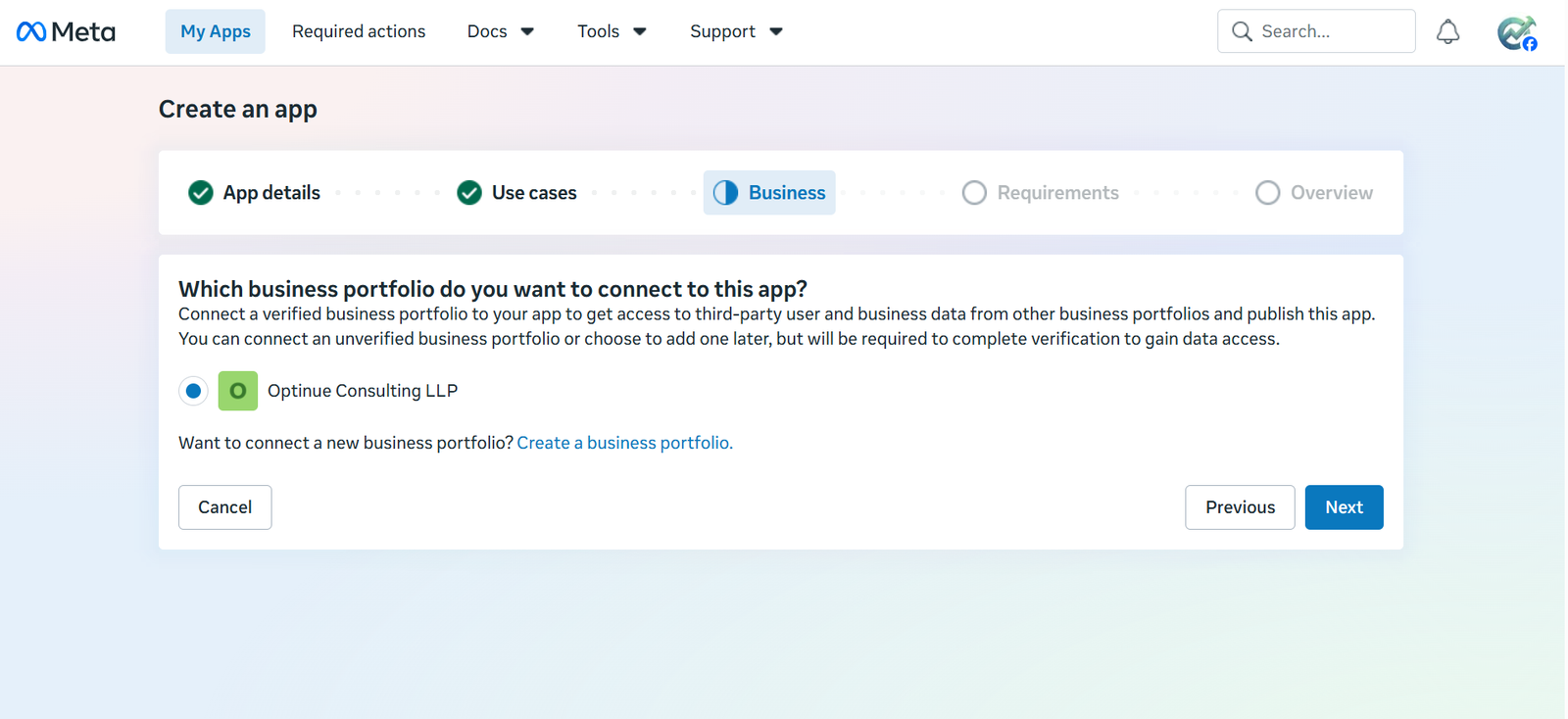
Business Portfolio

Add your business portfolio.

  1. Select an existing business portfolio or create a new one.
  2. Click Next button.
6

Publishing Requirements

Complete the publishing requirements.
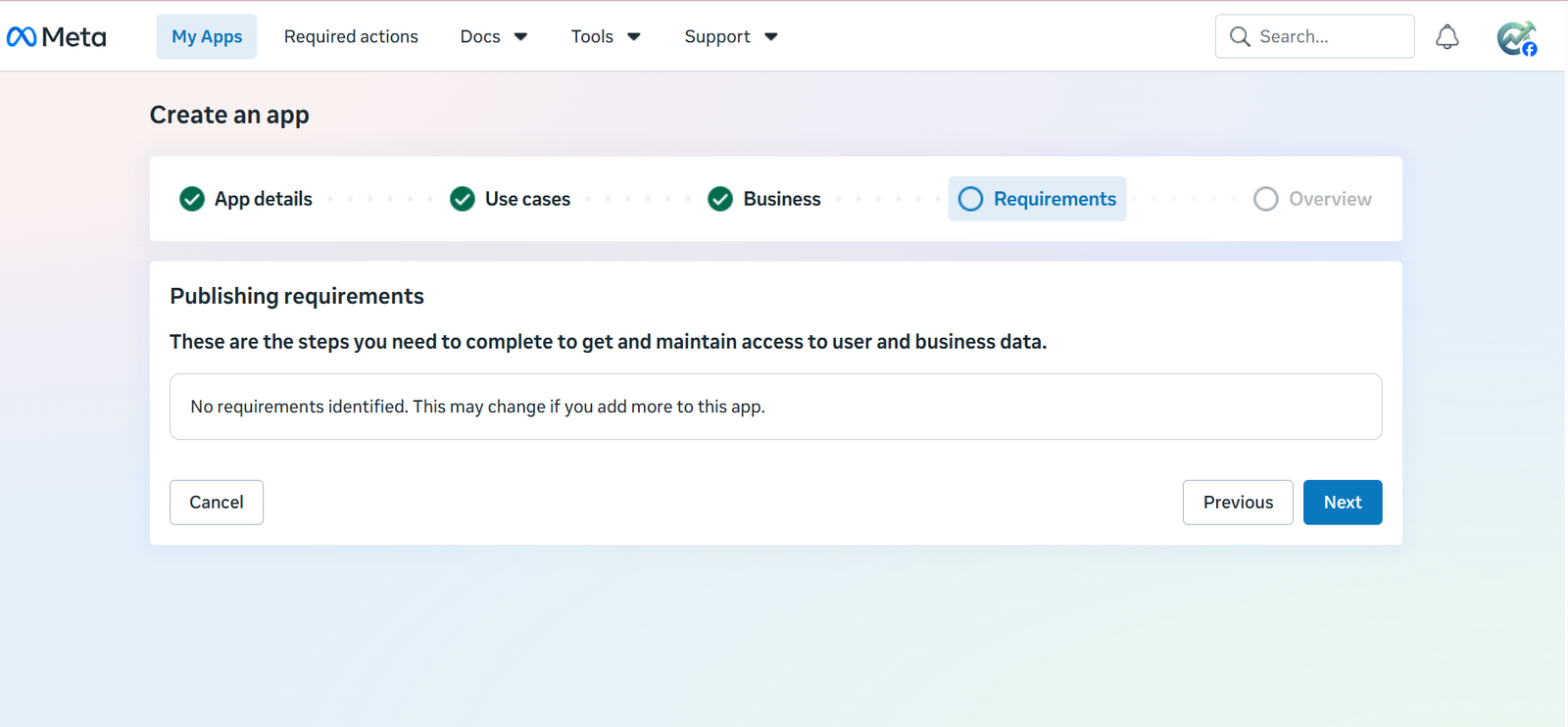
  1. Complete any publishing requirements if available.
  2. Click Next button.
7

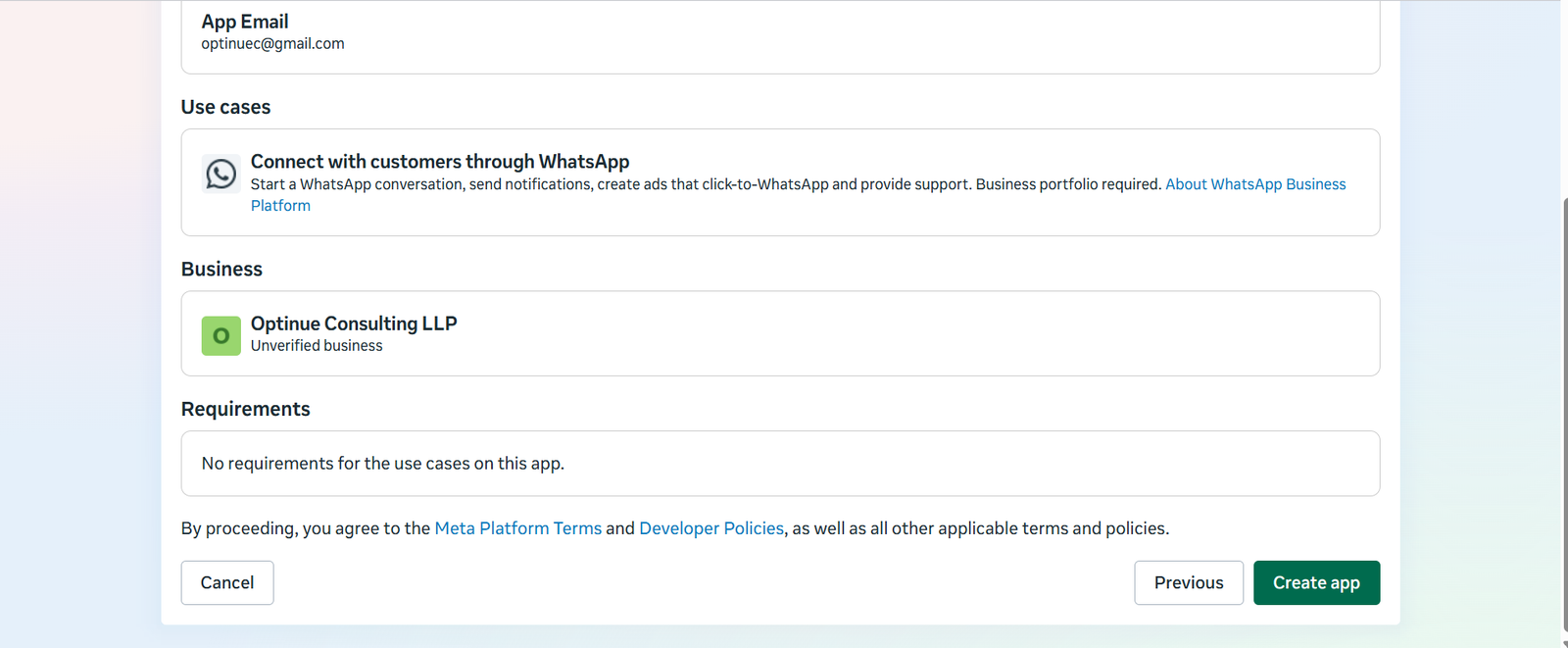
Overview

Review your app details.

  1. Review your app details before creating the app.
  2. If everything is correct, click the Create App button.
8

Setup Use Cases

Configure your WhatsApp use case.

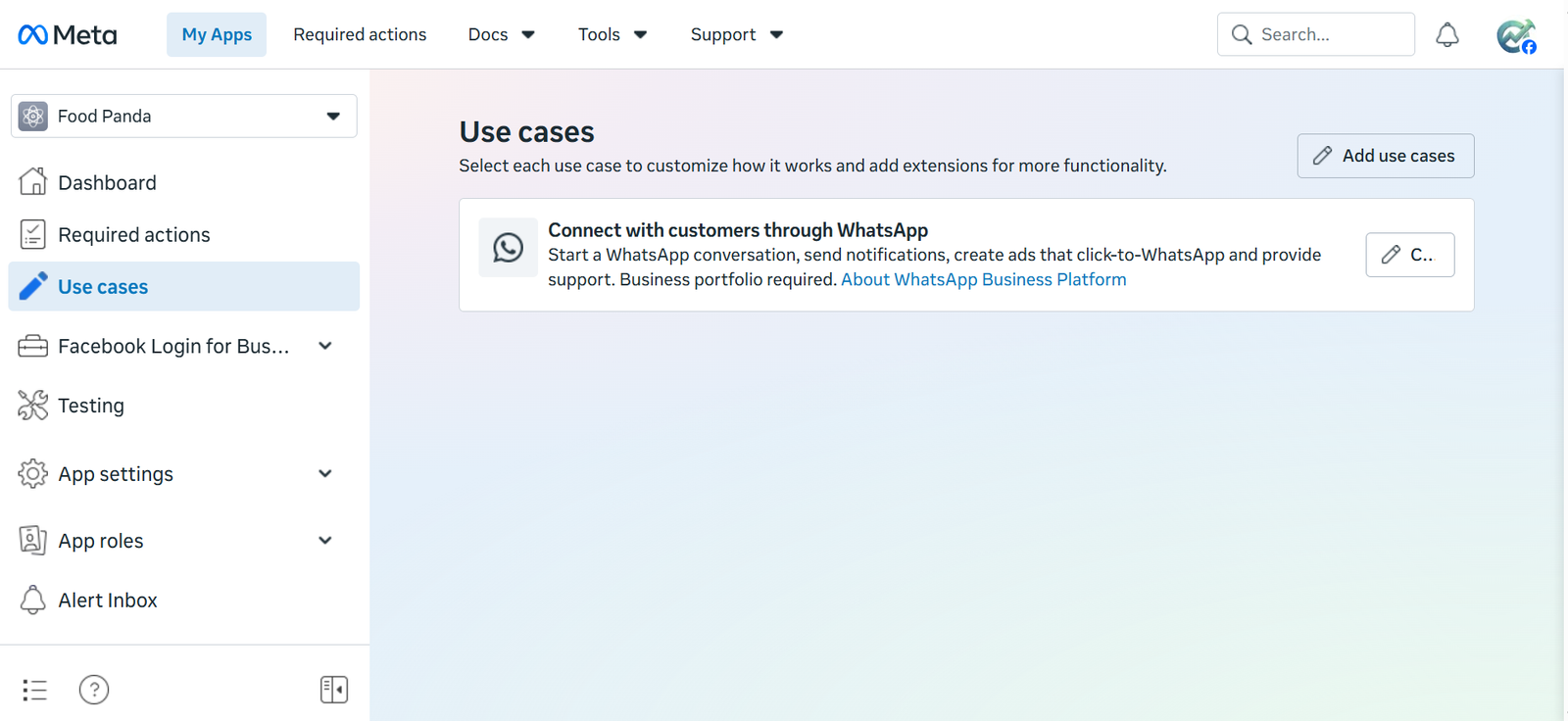
  1. Click the Use Cases menu from the left sidebar.
  2. Click the Edit button for "Connect with customers through WhatsApp".
9

Configure Webhook

Connect Facebook with Convo.

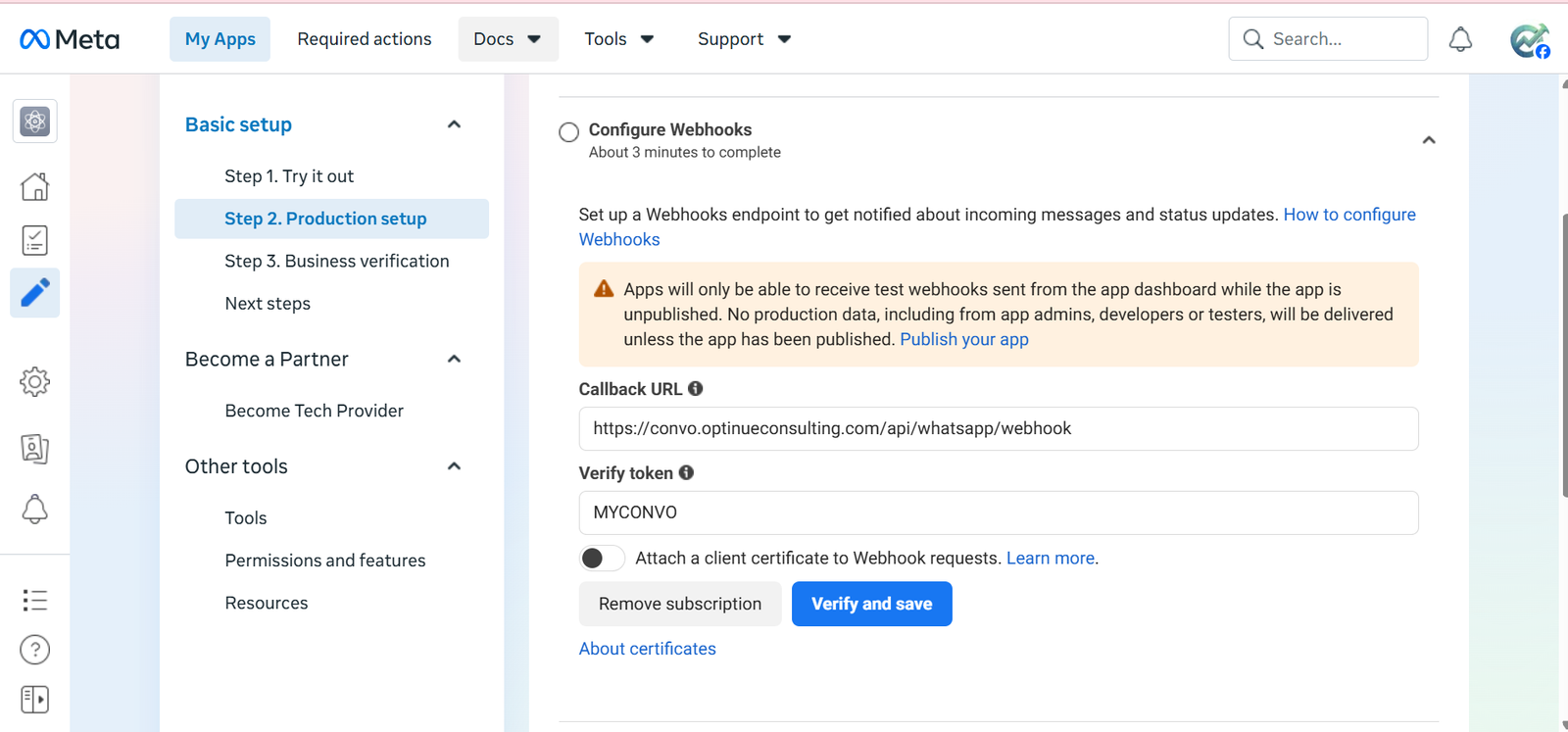
  1. Click Production Setup from the left panel.
  2. Click Configure Webhooks.
  3. Callback URL: https://convo.optinueconsulting.com/api/whatsapp/webhook
  4. Verify Token: MYCONVO
  5. Click Verify and Save.
10

Register New WhatsApp Number

Register your new WhatsApp phone number.
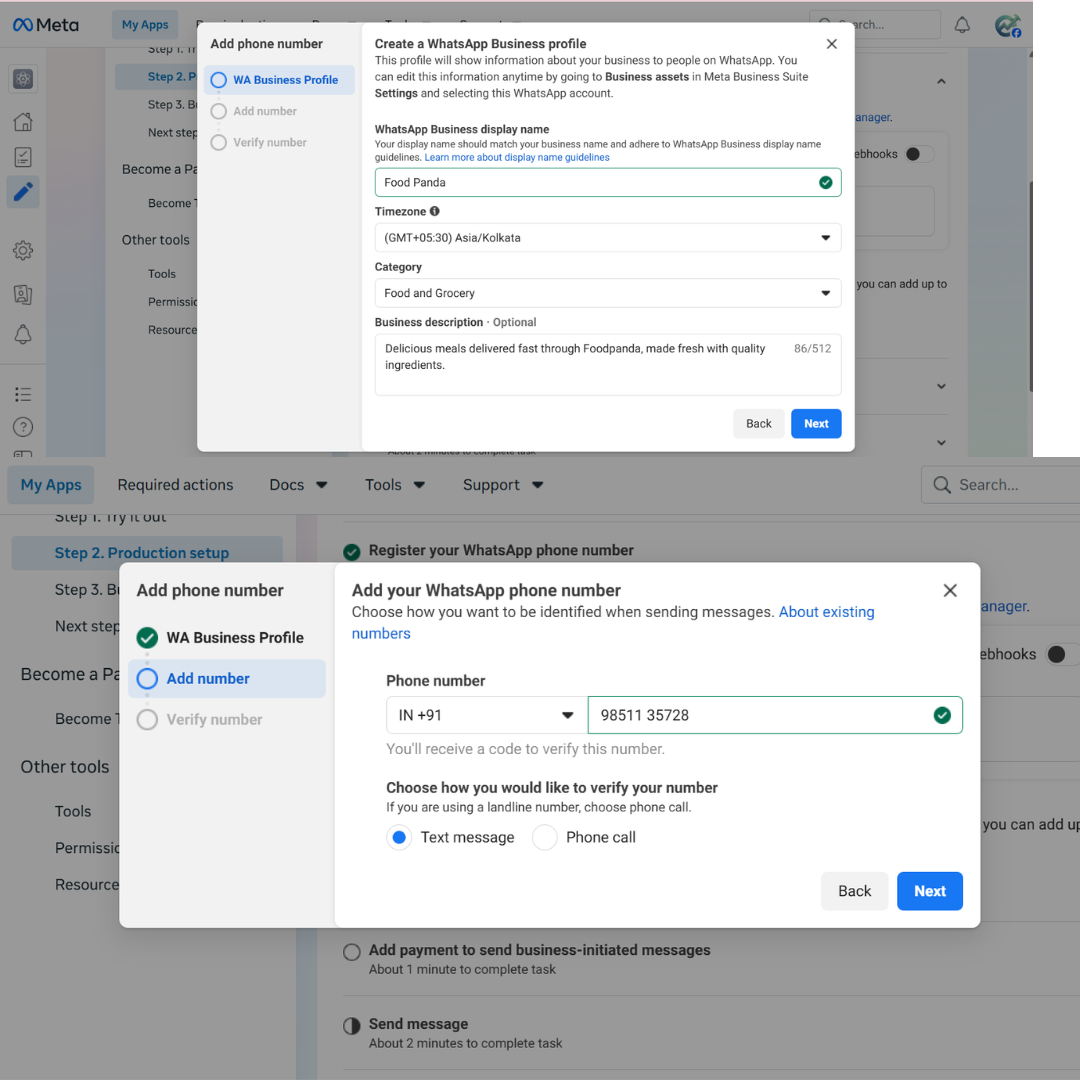
  1. Fill your WhatsApp Business profile information and click Next.
  2. Add your new WhatsApp number and click Next.
  3. Verify the number by SMS or phone call.
  4. Complete the registration process.
11

Generate Permanent Token

Generate an access token and send a test message.
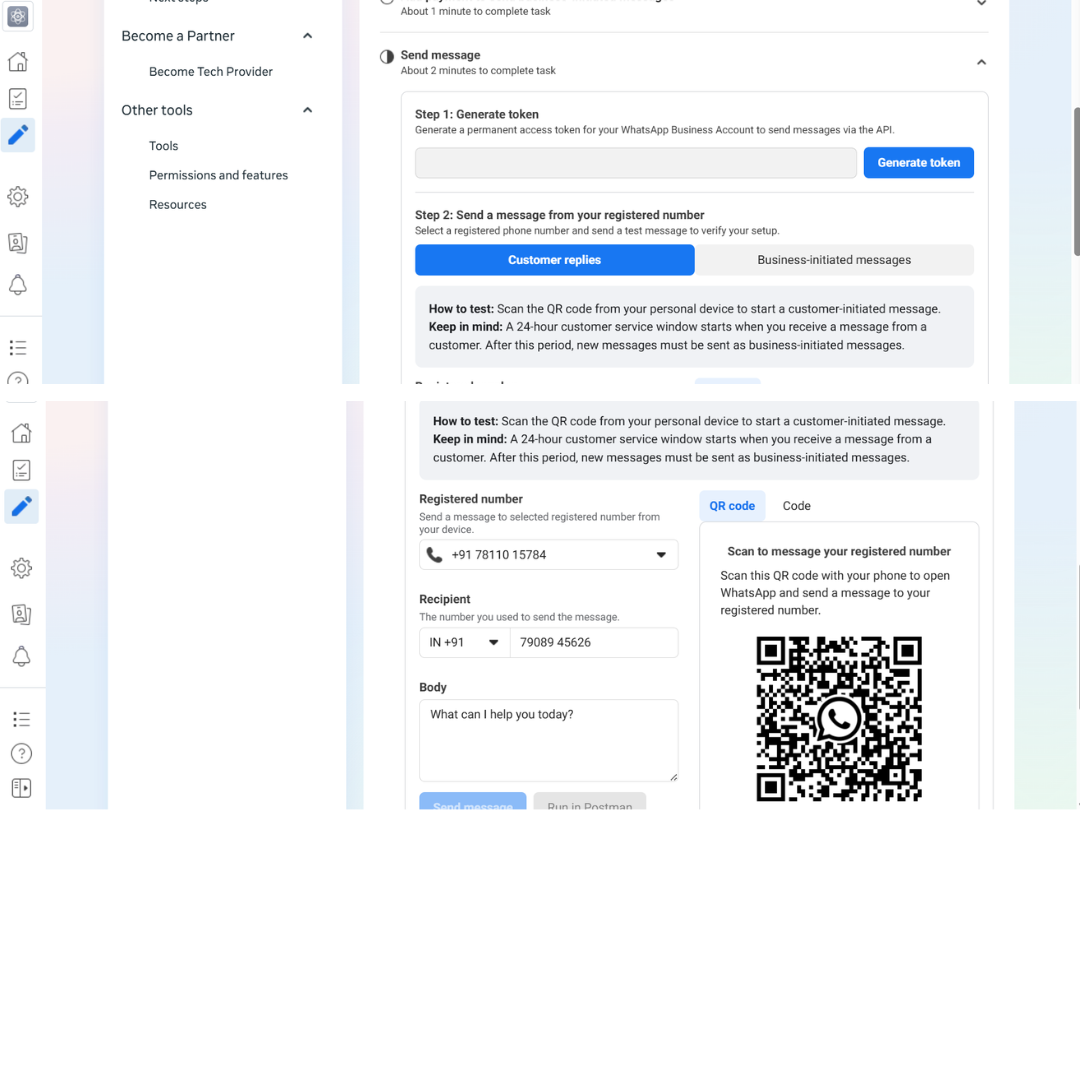
  1. Click the Generate Token button.
  2. Copy the token and save it in your Convo account.
  3. Keep the token in a safe place for future use.
  4. Enter a recipient WhatsApp number with country code.
  5. Type a test message.
  6. Click Send Message.
  7. Congratulations! The recipient will receive your message.

✔ Congratulations

If every step is completed you should now have:

  • ✅ WhatsApp Cloud API Enabled
  • ✅ Permanent Access Token
  • ✅ Phone Number ID
  • ✅ Business Account Connected
  • ✅ Ready to connect with Convo